Your memories, on your phone
Download your gallery
Photos and films, ready to keep. Choose your phone for the full process.
- 1
Open your gallery in Safari
If you opened the link inside WhatsApp, Instagram or another app, use its menu to open it in Safari. Enter the gallery password if your studio supplied one.
- 2
Choose what to download
Tap Download all for the whole gallery. Open a section and tap Download section for just that section. Heart the files you love, then tap Download favourites, or tap the download arrow on a single photo or video.
- 3
Watch the download panel
Keep this page open and your phone awake. The panel shows the whole download’s file count, size and estimated time left. On iPhone, a file’s progress may update only when that file finishes. Use a stable connection and make sure you have enough free space.
- 4
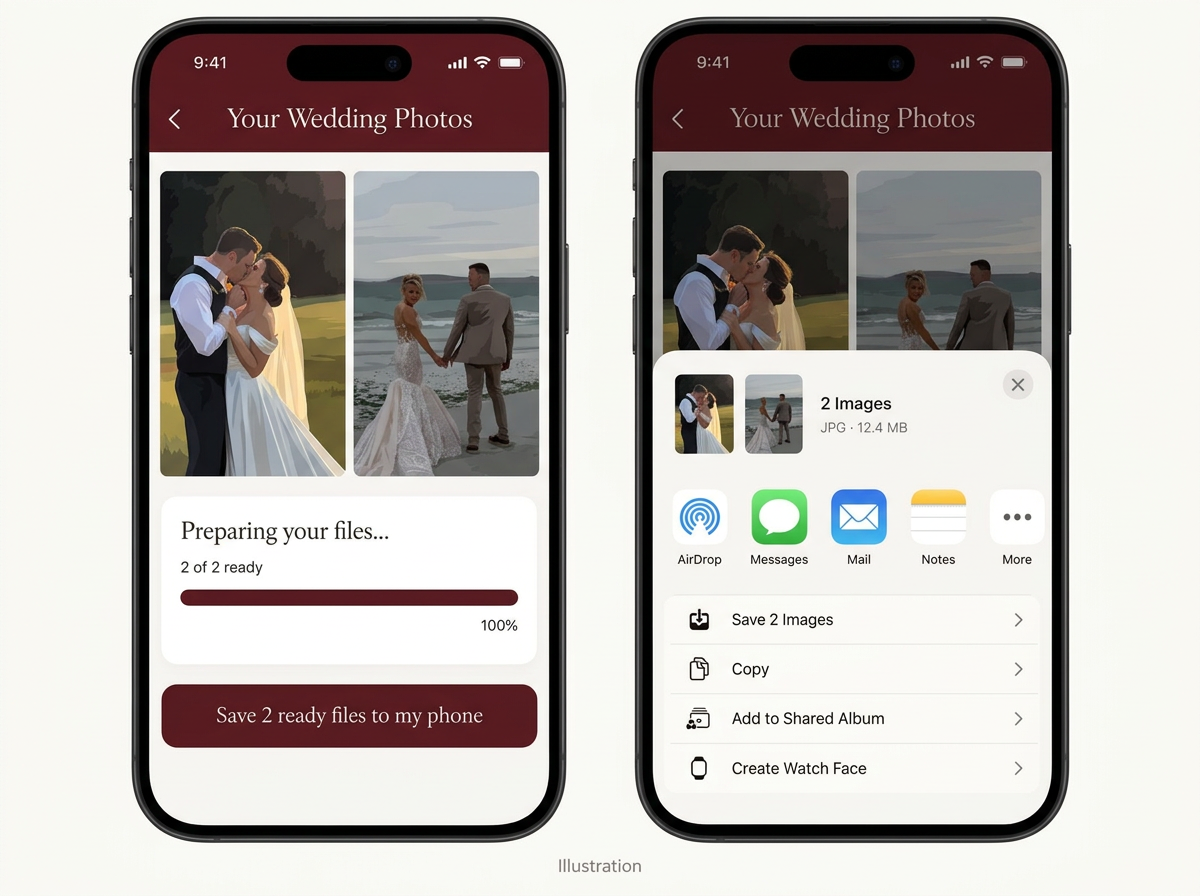
Save files as they become ready
Tap Save … ready files to my phone as soon as it appears. You don’t have to wait for the whole gallery. Each tap opens the save menu for up to 25 ready files; the remaining downloads keep going.
- 5
Choose Save Image or Save Video
In the iPhone share menu, scroll down to Save Image, Save Images, Save Video or a similar Photos option. The wording depends on the files and your iOS version. This is the step that puts the files in Photos; downloading alone does not do that automatically.
- 6
Repeat, then check Photos
Return to the gallery and save the next ready batch until there are no more files waiting to save. Open Photos and check Recently Saved or Recents. If Photos sorts by the date the picture was taken, also look at the event date.
If a file doesn’t save
Failed download: Check your connection and free space, then tap Download again beside the failed file. Retry all appears when several files have failed and the batch has finished.
No Photos option on iPhone: Your browser may save to Files instead when sharing isn’t supported. Open Files → Downloads, select the photo or video, tap Share and look for Save Image or Save Video. Unsupported file formats may need a compatible app or a different copy from your studio.
Closed the iPhone save menu? Tap the ready-files button again. If you chose another destination instead of Photos, check that destination or Files before downloading the file again.
No download button: Your studio may have disabled downloads. Contact them to ask for access. Expired galleries also need to be reopened by the studio.